Editors
Editors change the game itself: stats, prices, text, graphics, and maps. They're listed in the right column of the Landing view, in the order shown below unless you reorder them. Every built-in editor works the same way on ROM, Disch, and Anomie projects.
Built-in editors
-
 Classes
Edit class stats and graphics.
-
 Armor
Edit armor attributes, prices, and settings.
-
 Weapons
Edit weapon attributes, prices, graphics, and settings.
-
 Magic
Edit magic stats, users, and effects.
-
 Special Attacks
Edit attacks used exclusively by enemies.
-
 Shops
Edit shop prices and inventory.
-
 Battles
Edit battle formations, enemies, graphics, and palettes.
-
 Enemies
Edit enemy stats and attack patterns.
-
 Text
Edit various types of in-game text.
-
 Sprite Dialogue
Edit sprite handlers and events.
-
 Starting Items
Edit starting items and events for a new game.
-
 Party Setup
Edit the new game party options.
-
 Graphics
Edit the font, window frames, and other shared graphics.
-
 World Map
Edit features and layout of the world map.
-
 Local Maps
Edit features and layout of local maps.
How editors work
- Caption bar. Each editor shows its name after the HAKKINFF1 banner and tints the caption bar in its own color. The App Settings and About icons work from any editor. See Caption bar.
- Save and Cancel. The bar along the bottom of the page holds Save, which writes your changes to the project, and Cancel, which puts the ROM and project data back the way they were when you opened the editor. Both return to Landing.
- Keyboard shortcuts. Editors that have shortcuts show a
 button in that bottom bar. It opens a list of the page's keyboard shortcuts.
- Where saves go. On a ROM project, Save rewrites
workrom.nes. On an assembly project, Save writes only the changed data back into the matching source files inasm\. The project's.asmrecscatalog says where each piece of data lives. - Names from the game vs. labels. Items, spells, enemies, and classes take their names from the game's own text, which you edit in the Text editor. Things the game doesn't name (maps, shops, battles, AI scripts, and so on) use project labels, which you rename in place or in the Labels tool.
 Editor settings
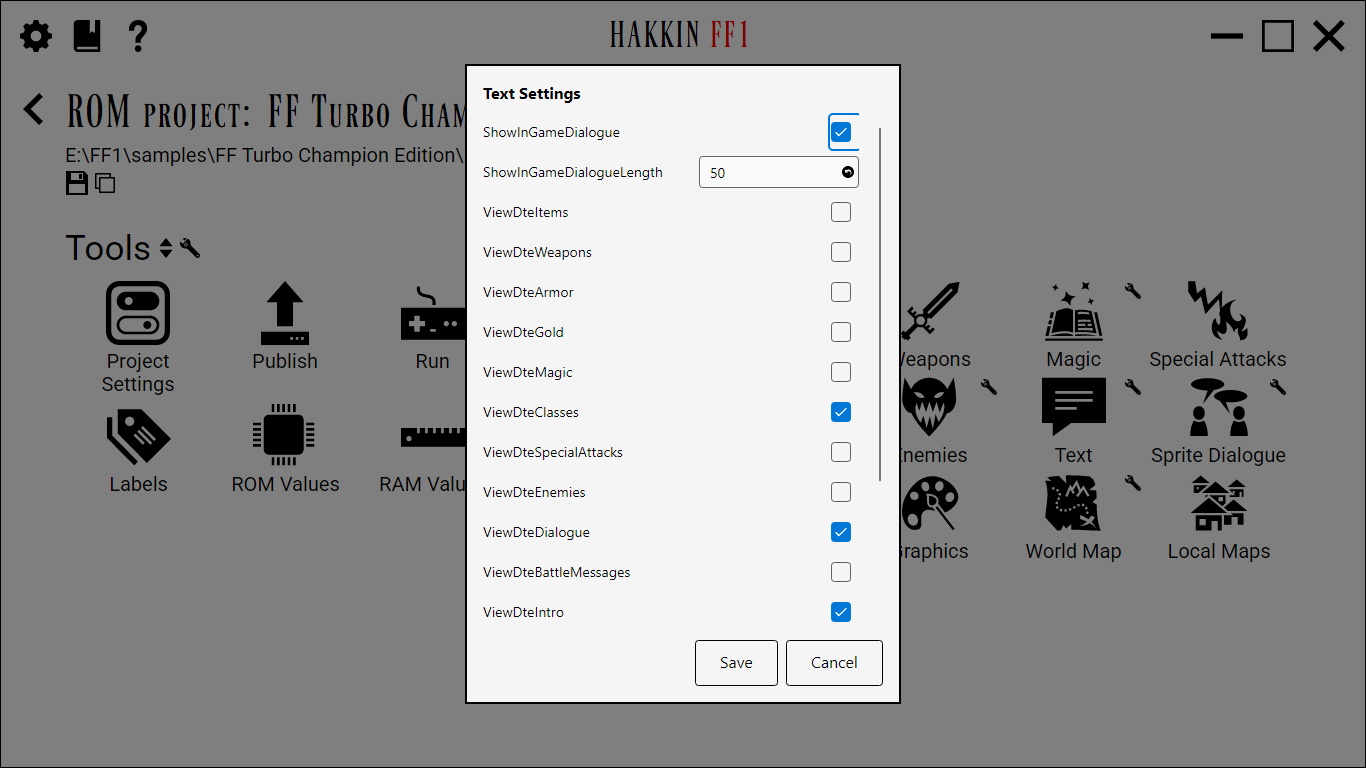
Some editors have settings that change how they behave or what they show. On Landing, those editors have a small
in the corner of their button. Click it, or right-click the button and choose
Edit Settings..., to open the settings overlay. A checkbox shows each on/off setting and a
text box each number or text setting. A setting that's been changed from its default has a button to reset it.
Save stores the settings with the project; Cancel leaves them
unchanged.
The same overlay is available inside an editor, from the button in its bottom
bar. Saving settings from there also saves the editor's other changes, since both are written to the project together.
| Editor | Settings |
|---|---|
| Classes | Turn off individual special-designation slots (Hold MP, MP cap, BBMA) and the initial-MP class range. |
| Enemies | Show byte 15 as flags or a number, and its caption; show or hide View Usage. |
| Battles | Show or hide View Usage. |
| Magic | The caption for spell byte 7. |
| Text | Dialogue preview length, View with DTE defaults for each text section, and the Credits text checksum. |
| Sprite Dialogue | Show actual text, the short-text length, and strict sprite-address checking. |
| World Map | The two tint colors for Show B+Select Squares. |
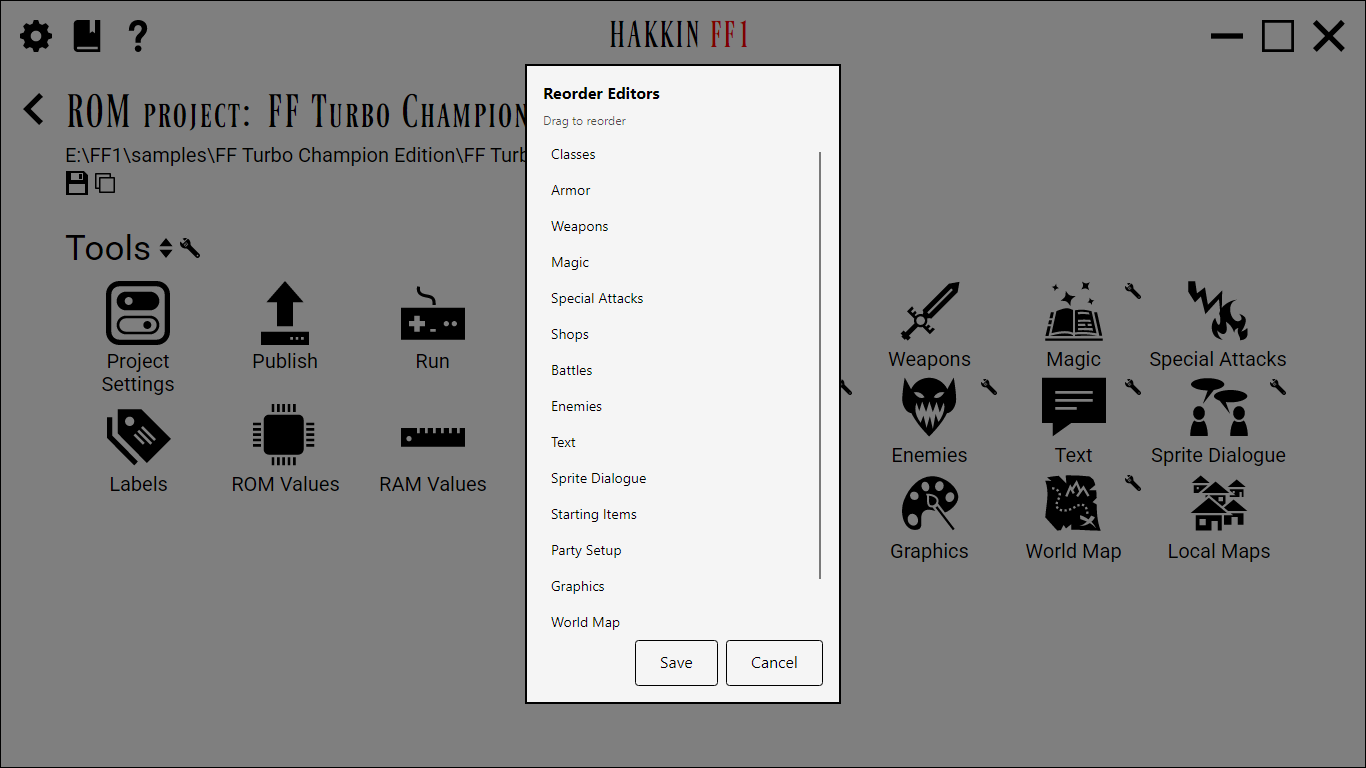
 Reorder Editors overlay
Opened with the icon next to Landing's Editors heading.
It lists every editor on Landing. Drag them into the order you want, then click Save.
Cancel leaves the order unchanged. Unlike Reorder Tools, every editor can be moved. The order
is saved with the project.
Select Editor Modules overlay
Opened with the icon next to Landing's Editors heading.
The overlay explains: Editors on the main screen will use the modules below. Excluding an editor hides it from the
main screen.
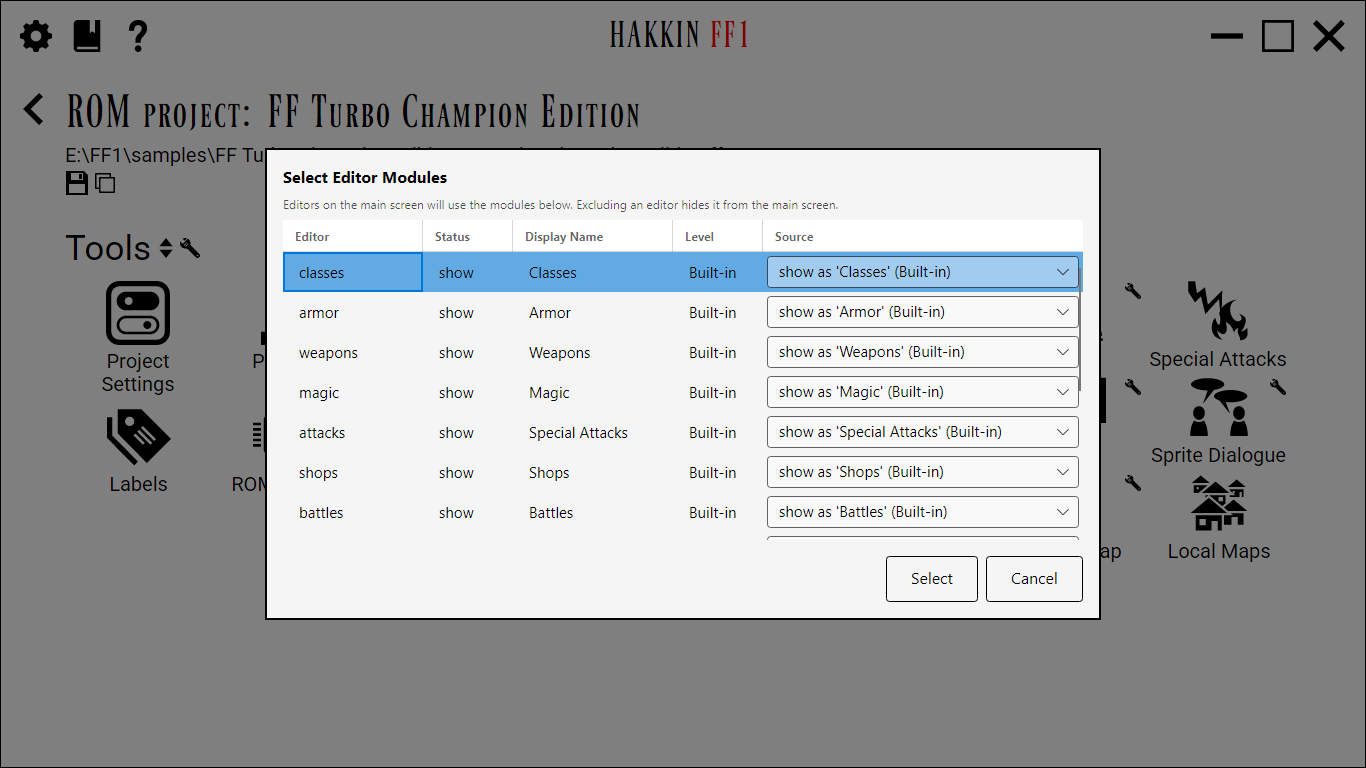
| Column | Detail |
|---|---|
| Editor | The slot's name, for example shops or worldmap. |
| Status | show, or hide when the slot is excluded. |
| Display Name | The label the slot's button will show. |
| Level | Where the module comes from: Built-in,
App (shared from <app folder>\extensions), Project
(the project's own extensions folder), Custom (anywhere else), or
Excluded. |
| Source | A dropdown for slots that have more than one option (the built-in, extension replacements, and Excluded); otherwise the module's location as plain text. |
Click Select to apply your choices to the project, or Cancel.
- Replacing an editor. An extension module can take over a built-in slot, so a project can use your own Shops editor instead of the stock one.
- Adding an editor. A module can also introduce a slot that doesn't exist in the app, such as a Gold editor. Installing it never changes an existing project on its own: the new slot starts out hidden, and choosing it adds it to the end of the project's editor list. From there, Reorder Editors can move it.
- Missing modules. If a project's chosen module goes missing, a built-in slot falls back to the built-in editor and says so the first time you click it. A slot the module introduced stays on Landing as a placeholder until the module is back.
- Trimming the list. Excluded hides an editor a project doesn't need. It's reversible, and nothing the editor stored is lost.
Modules are found in <app folder>\extensions (shared by every project) and in the project's own
extensions folder. Each extension goes in its own subfolder, and each DLL is named *.hff1.dll.