Settings
HakkinFF1 has two kinds of settings. App Settings apply to every project and are stored for your user account. Project Settings belong to one project and are stored in its folder, so they go wherever the project goes. Some editors also have settings of their own, which are covered on the Editors pages.
 App Settings
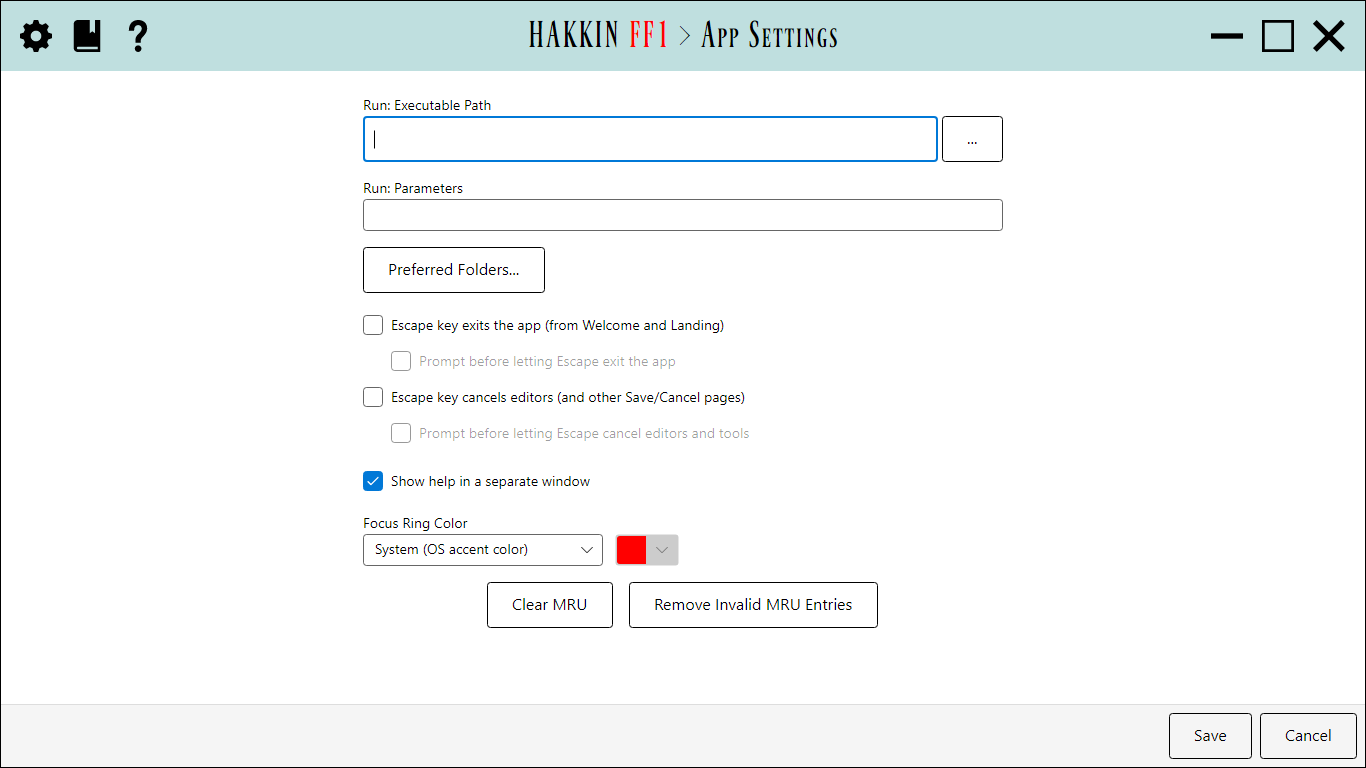
Open App Settings with the icon in the caption bar,
from any page. Save applies your changes and Cancel discards them.
Either way, you go back to the page you came from. The settings are saved to
%AppData%\HakkinFF1\appsettings.json.
Run
| Setting | Detail |
|---|---|
| Run: Executable Path | The program the Run tool launches, usually an NES emulator. |
| Run: Parameters | The command-line arguments to pass it. A literal %1 is replaced with the
quoted path of the project's built ROM (workrom.nes). For most emulators, %1 on its own
is enough. |
Preferred Folders
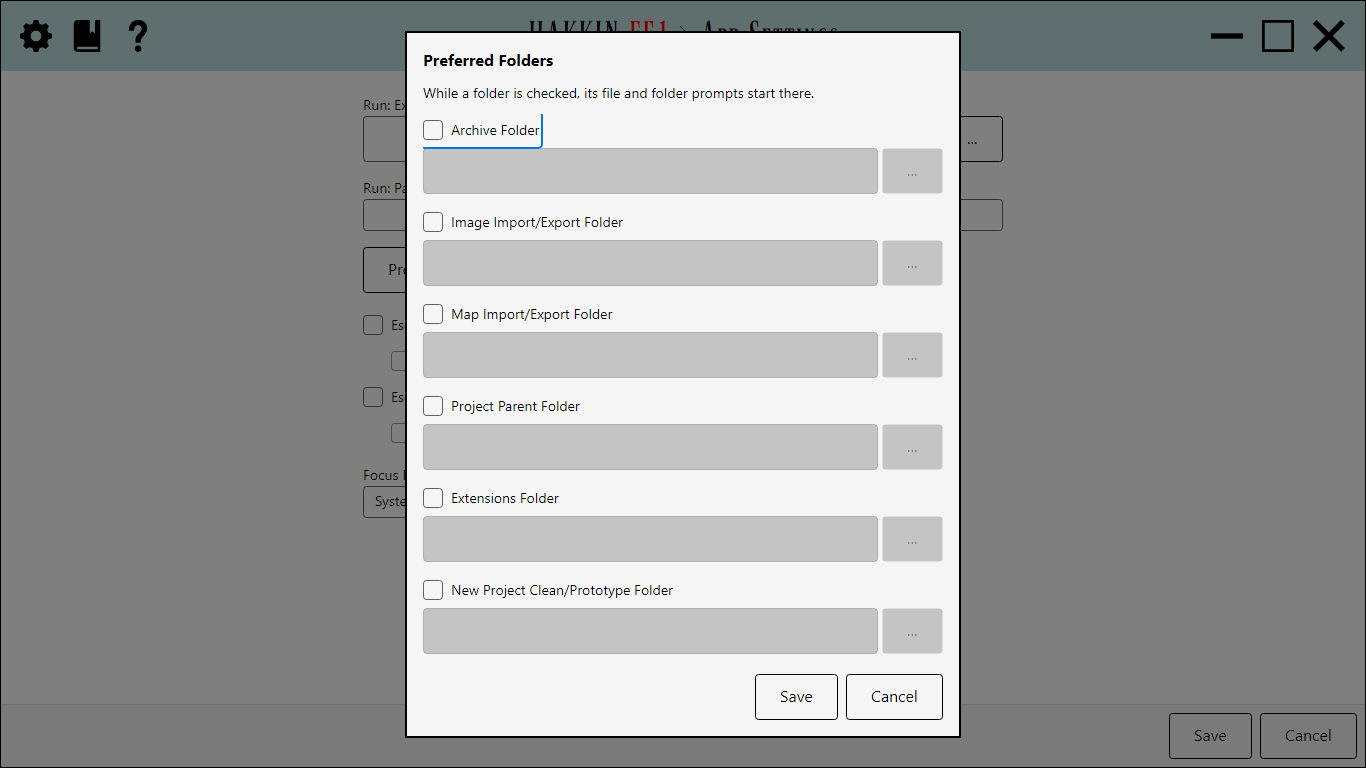
The Preferred Folders... button opens an overlay with one row per kind of file prompt. The number of active folders appears next to the button. While a row is checked, file and folder prompts of that kind start in its folder. The overlay's Save and Cancel only update this page; nothing is written to disk until you click App Settings' own Save.
| Preferred folder | Used by |
|---|---|
| Archive Folder | Loading and saving HFF1 archives (.hff1zip). |
| Image Import/Export Folder | Importing and exporting graphics as images. |
| Map Import/Export Folder | Importing and exporting World Map and Local Maps data. |
| Project Parent Folder | New Project's parent folder, and browsing for an existing project file. |
| Extensions Folder | Browsing for an extension DLL or .hff1ext bundle. |
| New Project Clean/Prototype Folder | New Project's Prototype Path and config file. |
Escape key
| Setting | Detail |
|---|---|
| Escape key exits the app (from Welcome and Landing) | Pressing Escape on the Welcome or Landing view closes the app. |
| Prompt before letting Escape exit the app | Asks for confirmation first. Only available while the setting above is on. |
| Escape key cancels editors (and other Save/Cancel pages) | Pressing Escape in an editor, tool, or other Save/Cancel page does the same as clicking Cancel. |
| Prompt before letting Escape cancel editors and tools | Asks for confirmation first, so a stray key press doesn't throw away your edits. Only available while the setting above is on. |
All four are off by default. With both main options on, pressing Escape repeatedly steps back from an editor to Landing, and then exits the app.
Focus Ring Color
The color of the outline drawn around whichever control has keyboard focus. System (OS accent color) follows your operating system's accent color. Custom enables a color picker so you can choose your own. Switching back to System keeps your custom color, in case you want it again.
Recent projects
| Button | Detail |
|---|---|
| Clear MRU | Empties the recent-projects list. |
| Remove Invalid MRU Entries | Removes entries whose project files no longer exist. |
Both ask for confirmation, then take effect immediately. Cancel doesn't undo them, because they aren't part of the page's staged changes.
 Project Settings
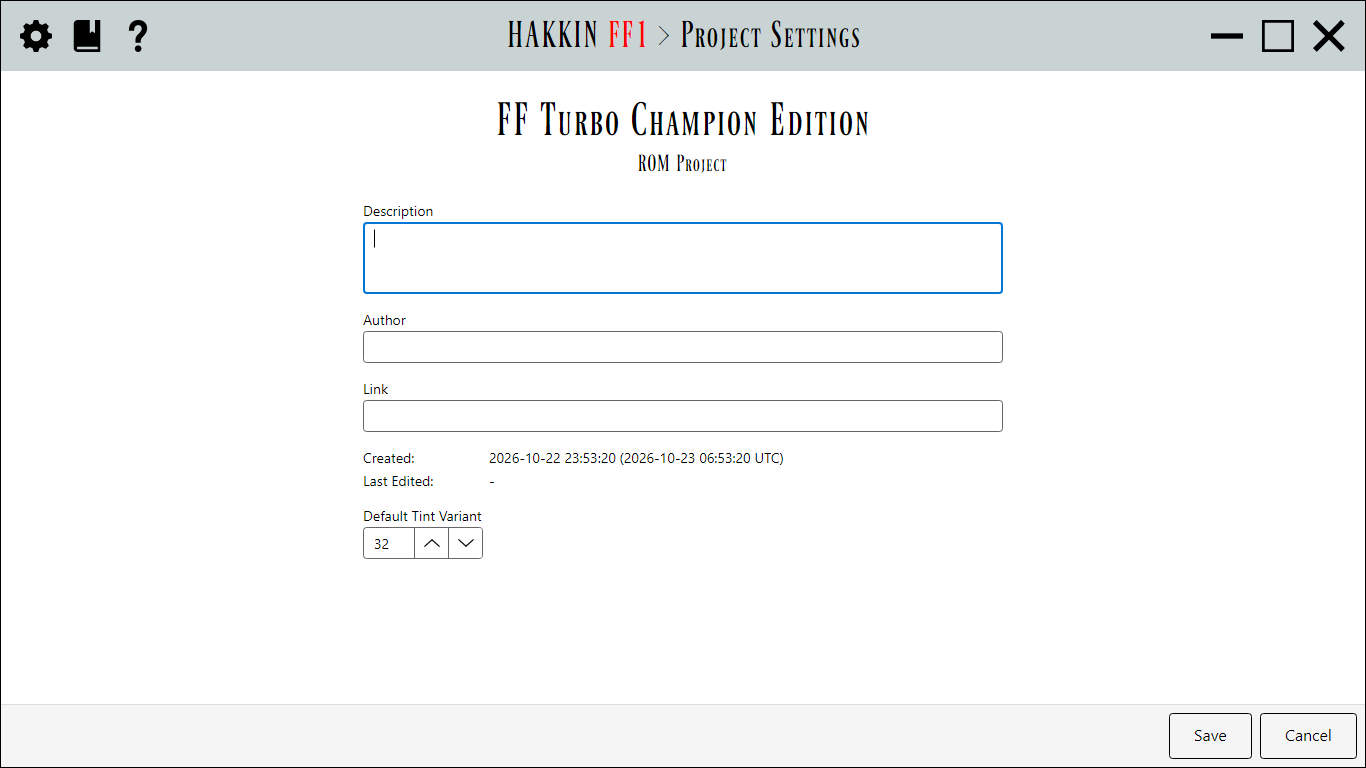
 is the first tool on the Landing view. It edits the open project's descriptive details. Save writes them to the project and Cancel reverts them; both return you to Landing. The page heading shows the project's type and name, the same as Landing.
| Field | Detail |
|---|---|
| Description | Free text describing the project. |
| Author | The project's author. |
| Link | A URL for the project, such as its home page or release thread. |
| Created | Read-only. Set when the project was created. |
| Last Edited | Read-only. Updated by every Save in any editor or tool, and blank until the first one. |
| Default Tint Variant | 0-255. The project-wide tint strength the map editors use to highlight tiles. Each tileset keeps its own value, which you edit in the World Map or Local Maps editor's Tint overlay. This is the value that overlay's reset button restores. |
Description, Author, Link, and the dates are stored in the project file (.ff1r or .ff1a).
Default Tint Variant is stored in the project data file (.ff1d).