 World Map
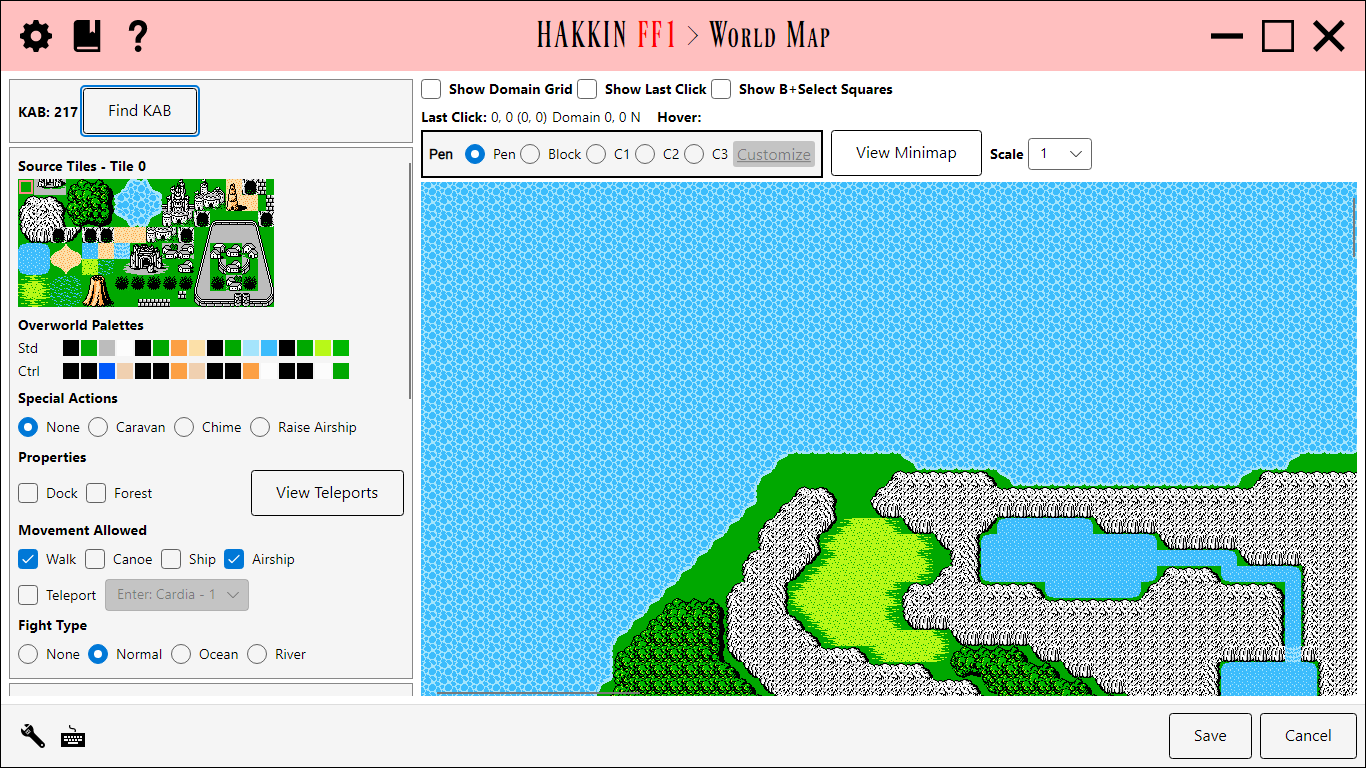
Edits the overworld: you paint its layout, edit the tiles it's made of, and set the starting position, vehicles, palettes, and random battles. The map canvas fills most of the page, and the panels on the left hold everything else.
Painting the map
- Select a tile in Source Tiles, then draw on the map with a tool: Pen paints one square at a time, and Block fills a rectangle.
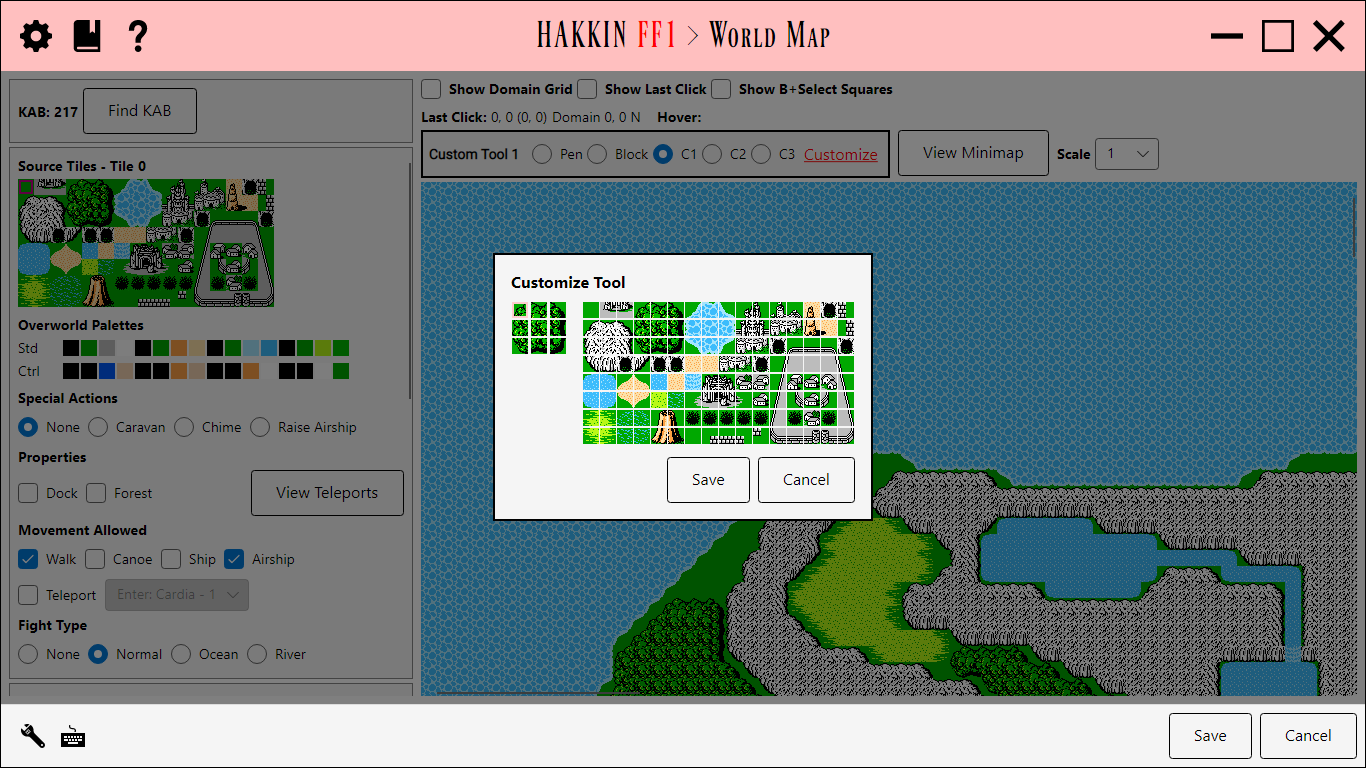
- Custom Tools 1-3 paint with smart tools, which pick matching edge and corner tiles as you draw (coastlines, for example). Customize opens the Customize Tool overlay to set which tiles each one uses.
- Scale zooms the map. Hover shows the coordinates under the mouse, and Last Click shows where you last clicked. Show Last Click marks it on the map.
- Find KAB shows how many bytes are still free. The map is stored compressed, so a busier layout takes more room. The map has to fit to be saved.
- Import Map and Export Map save the layout to a file and load it back.
Source Tiles
The tile picker, with the selected tile's Properties listed beneath it:
| Property | Detail |
|---|---|
| Special Actions | None, Caravan, Chime (the Chime is needed to enter), or Raise Airship. |
| Properties | Dock (the ship can dock here) and Forest. |
| Movement Allowed | How the tile can be crossed: Walk, Canoe, Ship, Airship, plus whether it's a Teleport (an entrance). |
| Fight Type | None, Normal, Ocean, or River: whether random battles happen here, and which kind. |
The Source Tile Editor edits a tile's graphics: its pattern tables, palette, and a closeup for pixel editing. Double-click a tile to open it. The Tint overlay sets how strongly tinted tiles are highlighted for this tileset; its reset button restores the project default from Project Settings.
Misc Coordinates
The starting position and the positions of the ship, airship, bridge, and canal. Choose one to see its marker on the map; drag the marker to move it. Vehicle Graphics... edits the ship, airship, canoe, airship shadow, bridge, and canal sprites.
Overworld Palettes
The overworld's colors, in two halves: Std (the map tiles) and Ctrl (sprites, such as the party and vehicles). Double-click a color to change it in the NES Palette overlay.
Battles for Domain
The world is divided into a grid of domains, each with its own random battles. Show Domain Grid draws the grid on the map. Click a square to show its domain's eight battle slots. For each slot, choose a battle and whether it uses its second formation (F-2; see Battles). Land Battle Rate and Sea Battle Rate set how often battles happen, and Backdrop chooses the battle background, which Backdrop Graphic can edit.
Other views
- View Minimap shows the whole world at a glance, so you can jump around it.
- View Teleports lists the overworld's teleports, the entrances into towns and dungeons, with the Map, X, and Y each one leads to. Followup saves and opens the Local Maps editor at that destination.
- Show B+Select Squares tints the squares the B+Select map draws its title and crests over. Land painted there won't show on that map. Squares that already have land get the stronger tint.
Settings
| Setting | Detail |
|---|---|
| BSelectSquareTint | The tint for B+Select squares, as #AARRGGBB. |
| BSelectLandTint | The stronger tint for B+Select squares that already hold land, as #AARRGGBB. |