 Shared Overlays
Some overlays open from more than one editor. They work the same way wherever they open, so they're described once here. While one is open, F1 opens this page and Shift+F1 jumps to its section.
Every overlay here except View Usage stages its changes. Save applies them to the editor underneath, and Cancel drops them. Nothing reaches the project until you save the editor itself.
Weapon/Magic Graphic overlay
Edits the pixels of a weapon or spell graphic. In Weapons, click a row's Graphic thumbnail. In Magic, click the graphic in Graphic and Palette. The overlay's title says which kind of graphic it is.
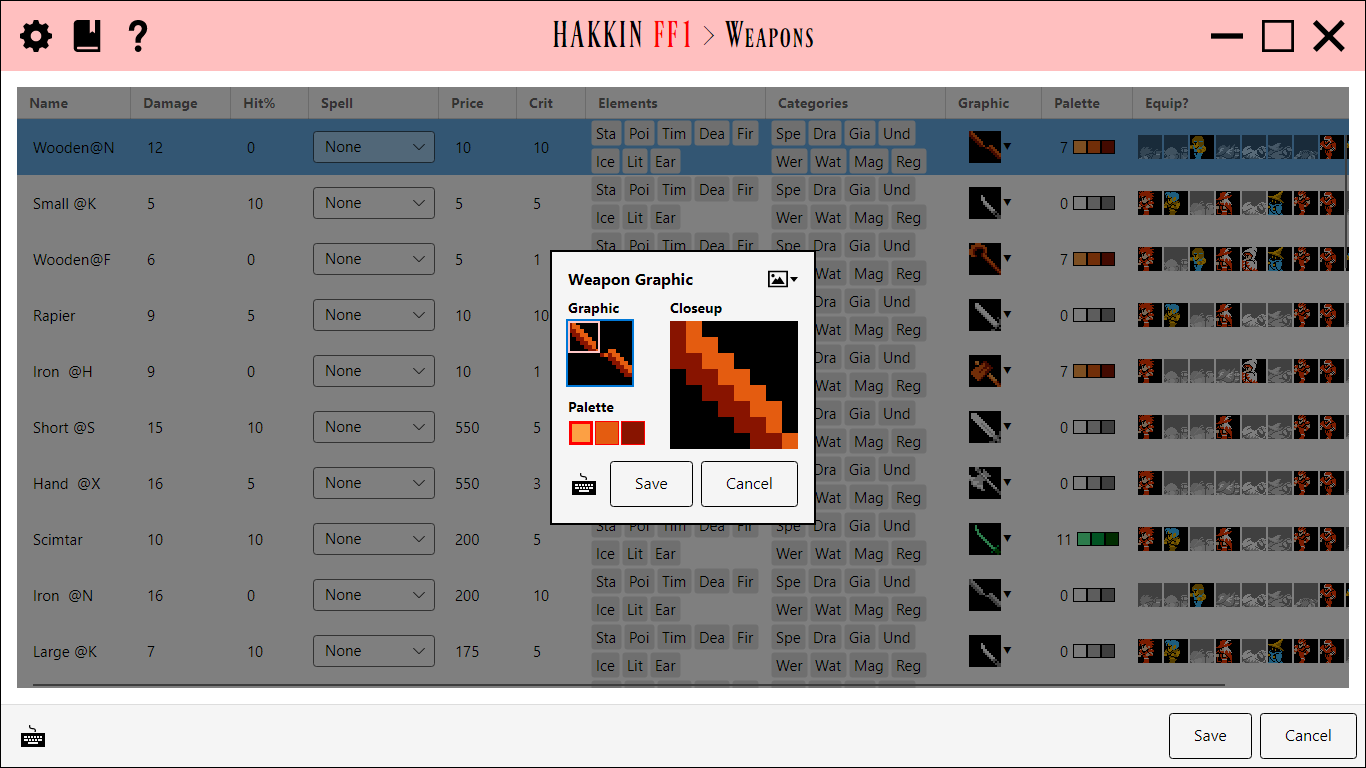
- Graphic shows the tiles that make up the graphic: four for a weapon, eight for a spell. Click one to edit it in the Closeup.
- Closeup is the selected tile, enlarged. Left-click or drag to paint with the selected palette color; right-click or drag to erase.
- Palette shows the graphic's three colors. Click one to paint with it. The colors come from the weapon's or spell's palette, so they can't be changed here; use the Select Palette overlay instead.
- The
 button exports the graphic as an image and imports it back.
Weapons and spells share the same pool of graphics, so editing one changes every weapon and spell that uses it.
Select Graphic overlay
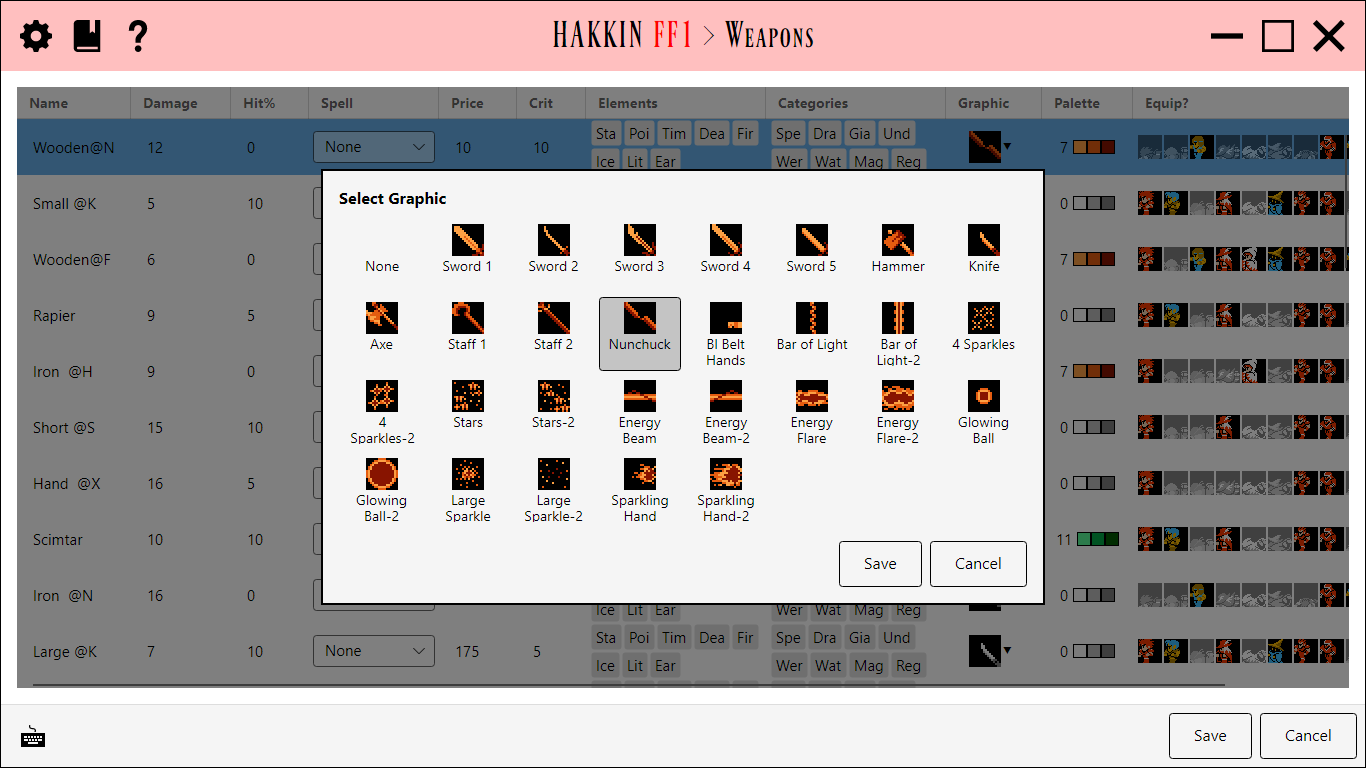
Chooses which graphic a weapon or spell uses. Click the ▼ beside a Graphic thumbnail in Weapons or Magic. Each graphic is drawn in the row's own palette, labeled with its name from the Labels tool. Click one, then Save.
Palette overlays
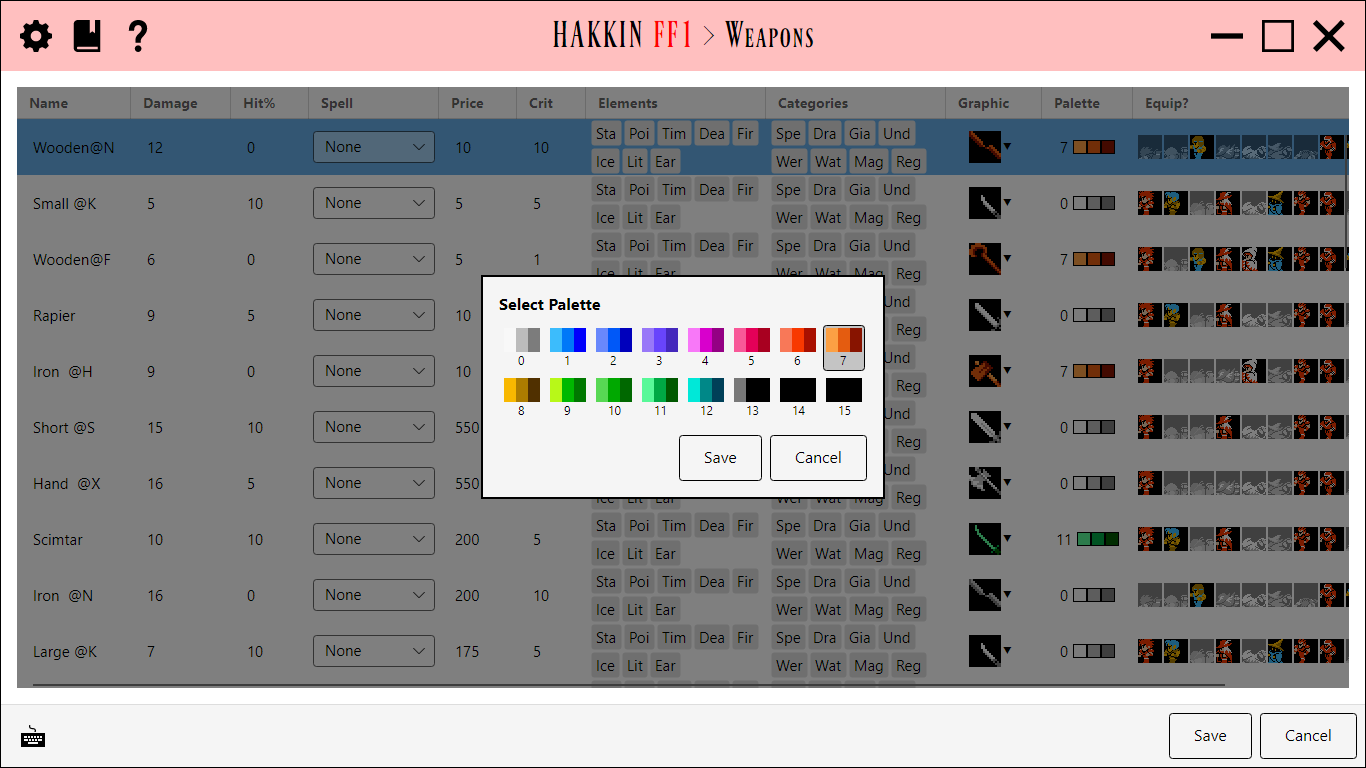
There are two palette overlays. Select Palette chooses a weapon's or spell's palette. NES Palette changes one color in a palette.
Select Palette overlay
Chooses a weapon's or spell's palette. Click a Palette swatch in Weapons, or the palette swatches in Magic's Graphic and Palette. Weapon and spell graphics can use only these 16 palettes, so each one is shown with its three colors. Click one, then Save.
NES Palette overlay
Changes one color of a palette to any of the NES's 64 colors. It opens when you double-click a palette color in:
- Classes' Mapman Pic overlay
- the Graphics editor
- Shop Graphics
- World Map's Overworld Palettes
- the Enemy Graphic and Source Tile Editor overlays
In Local Maps' Palettes, a single click opens it.
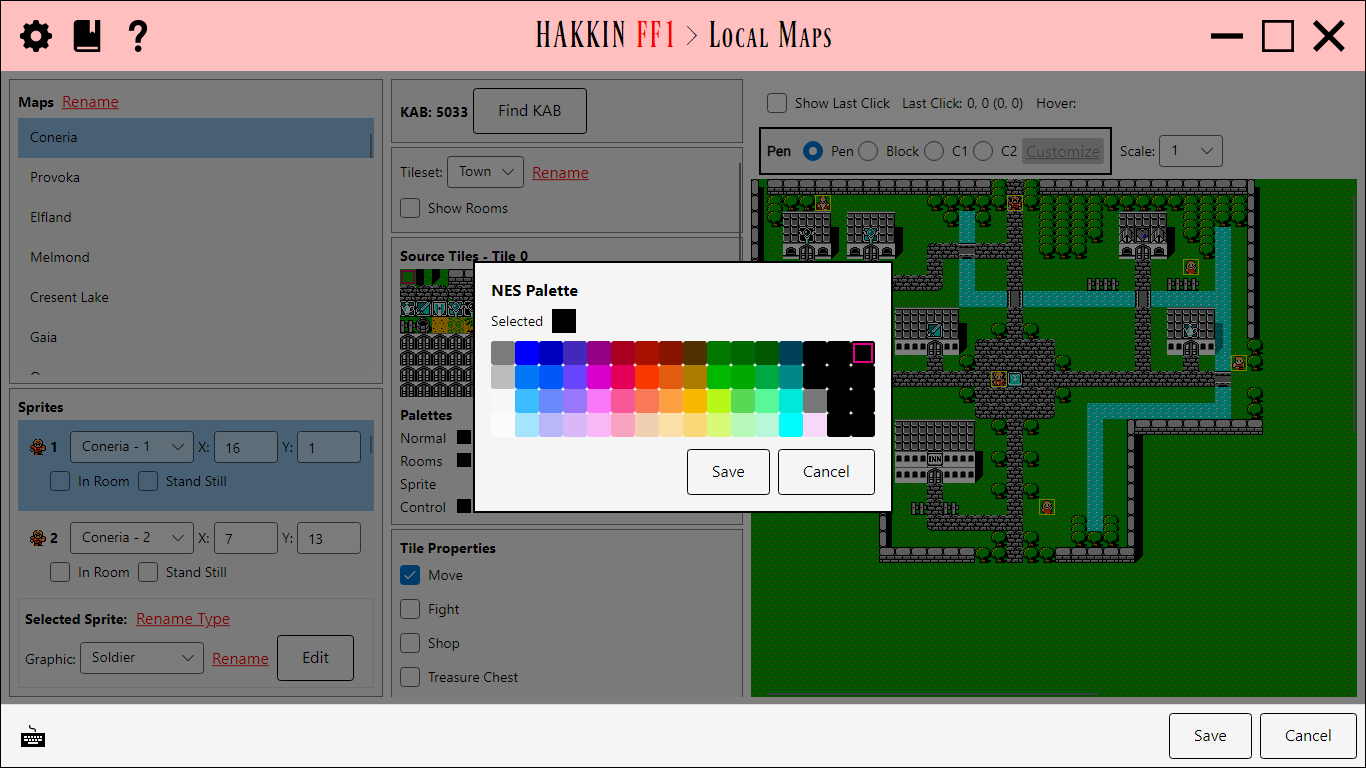
The grid is the NES's colors in its own order: 16 hues across, 4 brightness levels down. The color you click is shown in Selected, and the grid outlines it. Save puts it in the palette.
World Map's overworld palette is shared by every tile. A color saved from inside the Source Tile Editor stays changed even if you then cancel the Source Tile Editor; cancel the World Map editor itself to undo it.
Enemy Graphic overlay
Edits an enemy's graphic and the battle pattern table it's drawn from. Click Edit Graphic in Enemies or Edit Graphic... in Battles. The title names the pattern table. An enemy is drawn with the pattern table of the first battle it appears in, so that's the one Enemies opens.
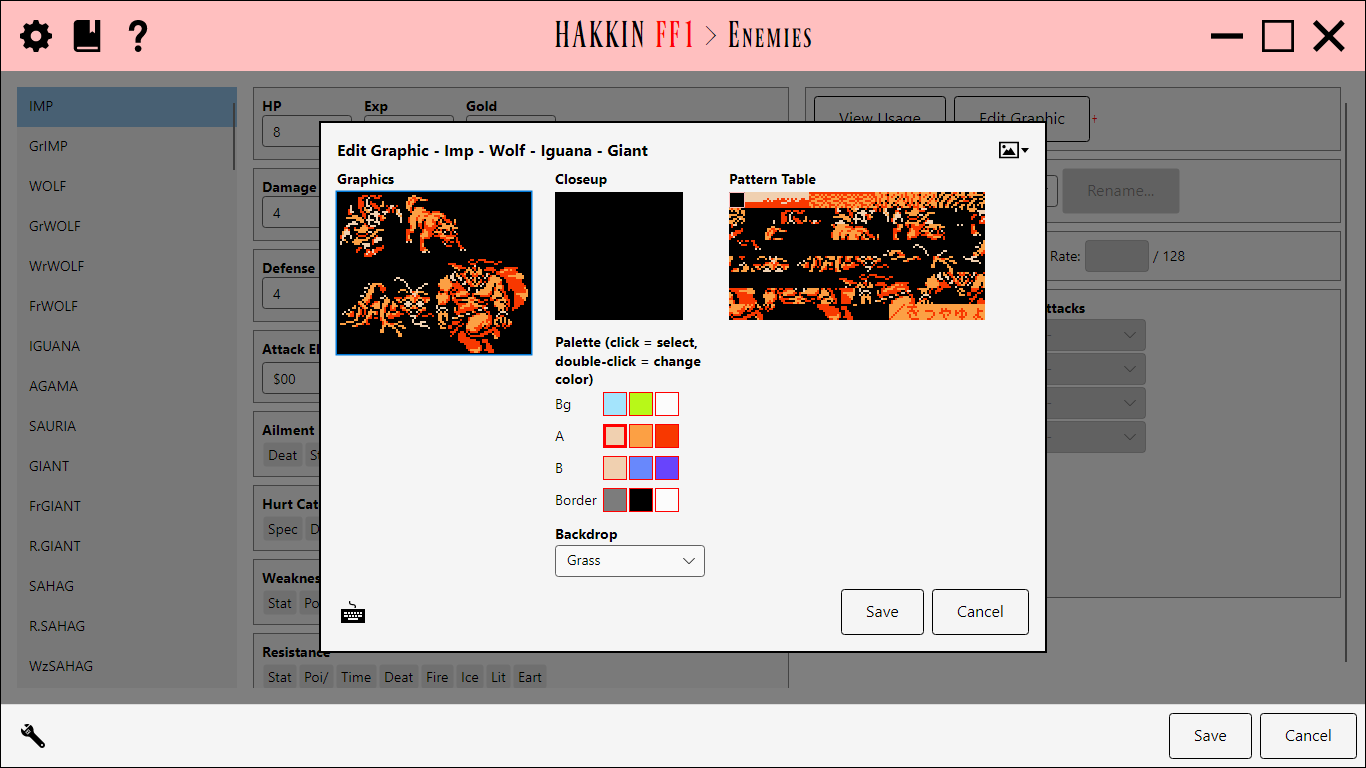
- Graphics shows the pattern table's four enemy graphics, two small and two large. Click a block to edit it in the Closeup.
- Closeup is the selected block, enlarged. Paint and erase as in the Weapon/Magic Graphic overlay.
- Palette has four rows. Bg is the battle backdrop's colors, A and B are the battle's two enemy palettes, and Border is fixed. Click a color to paint with it, or double-click it to change it in the NES Palette overlay. Alt+1 to Alt+4 move to a row.
- Backdrop chooses which backdrop's colors the Bg row shows and edits.
- Pattern Table shows all 128 blocks of the pattern table. Click one to edit it in the Closeup.
- The button exports the graphics as an image and imports them back.
Fiend and Chaos graphics are assembled from blocks through a layout, and Graphics shows that layout instead. Three modes choose what a click does:
- Draw edits what a block looks like.
- Reshape edits where blocks go. Select a position in Graphics, then click a Pattern Table block to put it there.
- Repalette edits which colors each area uses. Select a position in Graphics, then click a palette group below to assign it.
View Usage overlay
Lists everywhere something is used. It only reads the project, so it has a single OK button.
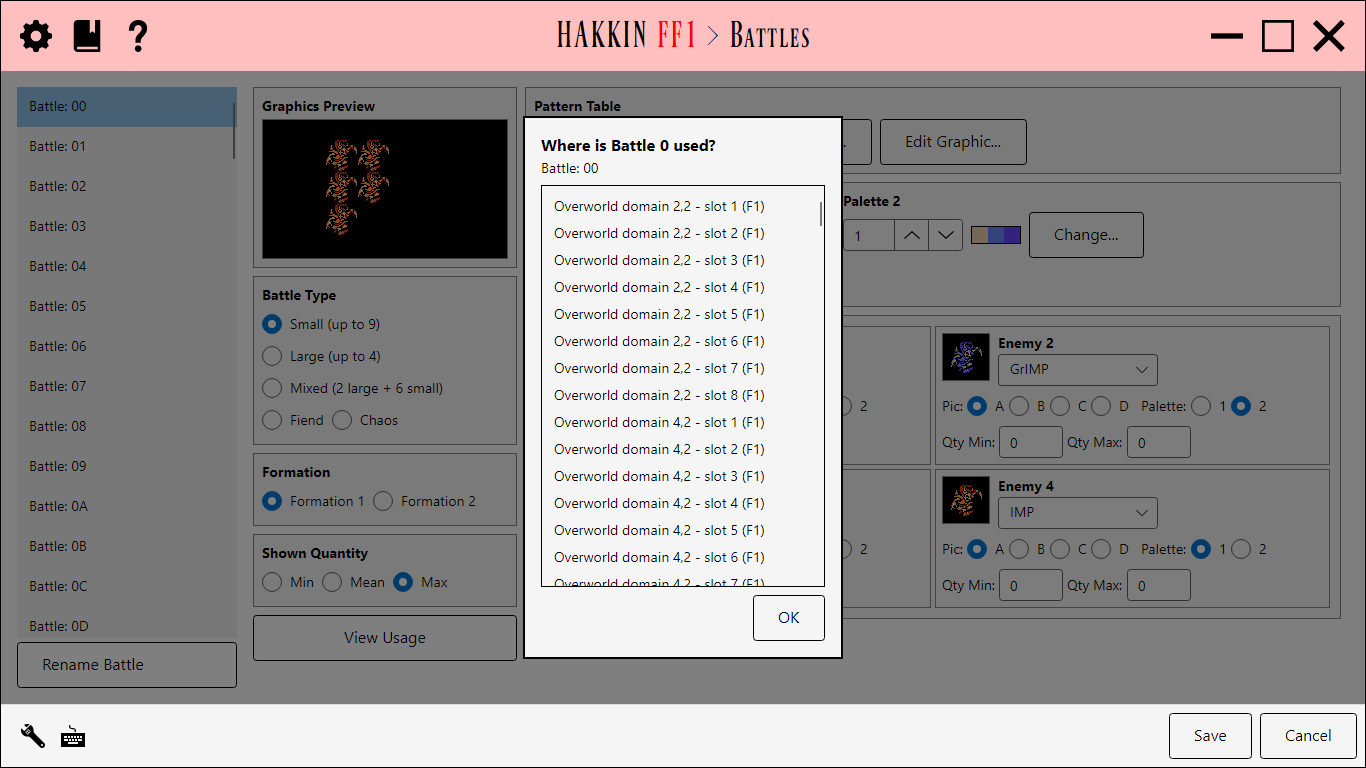
| Opened from | Lists |
|---|---|
| Battles | World map domains, local maps' random encounters, fixed-battle tiles on local maps, and sprite dialogue that starts the battle. |
| Enemies | The battles the enemy appears in. |
Both editors have a ViewUsage setting that hides the button.
Source Tile Editor
Edits the graphics of one source tile, the 16×16 tiles maps are painted with. In World Map or Local Maps, double-click a tile in Source Tiles, or select it and press Space.
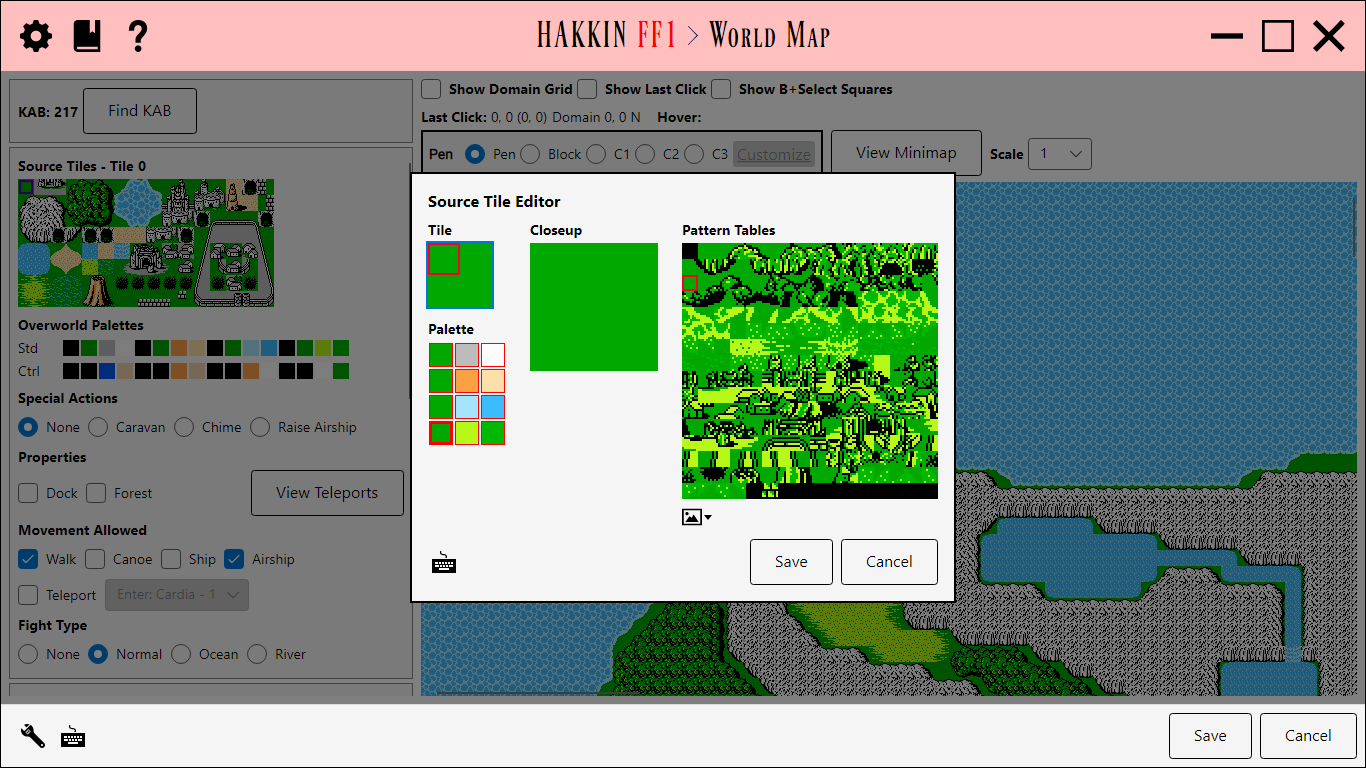
- Tile shows the tile's four 8×8 quarters. Click one to edit it.
- Palette shows the four palette groups. Click a color to paint with it and to give the tile that group. Double-click a color to change it in the NES Palette overlay.
- Closeup is the selected quarter's block, enlarged. Paint and erase as in the Weapon/Magic Graphic overlay.
- Pattern Tables shows every block in the tileset. Click one to use it for the selected quarter; the block the quarter uses is outlined. With the keyboard, the arrows move a cursor and Space assigns the block under it.
- The button exports the pattern tables as an image and imports them back.
Blocks are shared by every tile in the tileset. Painting a block in the Closeup also changes any other tile that uses it.