 Local Maps
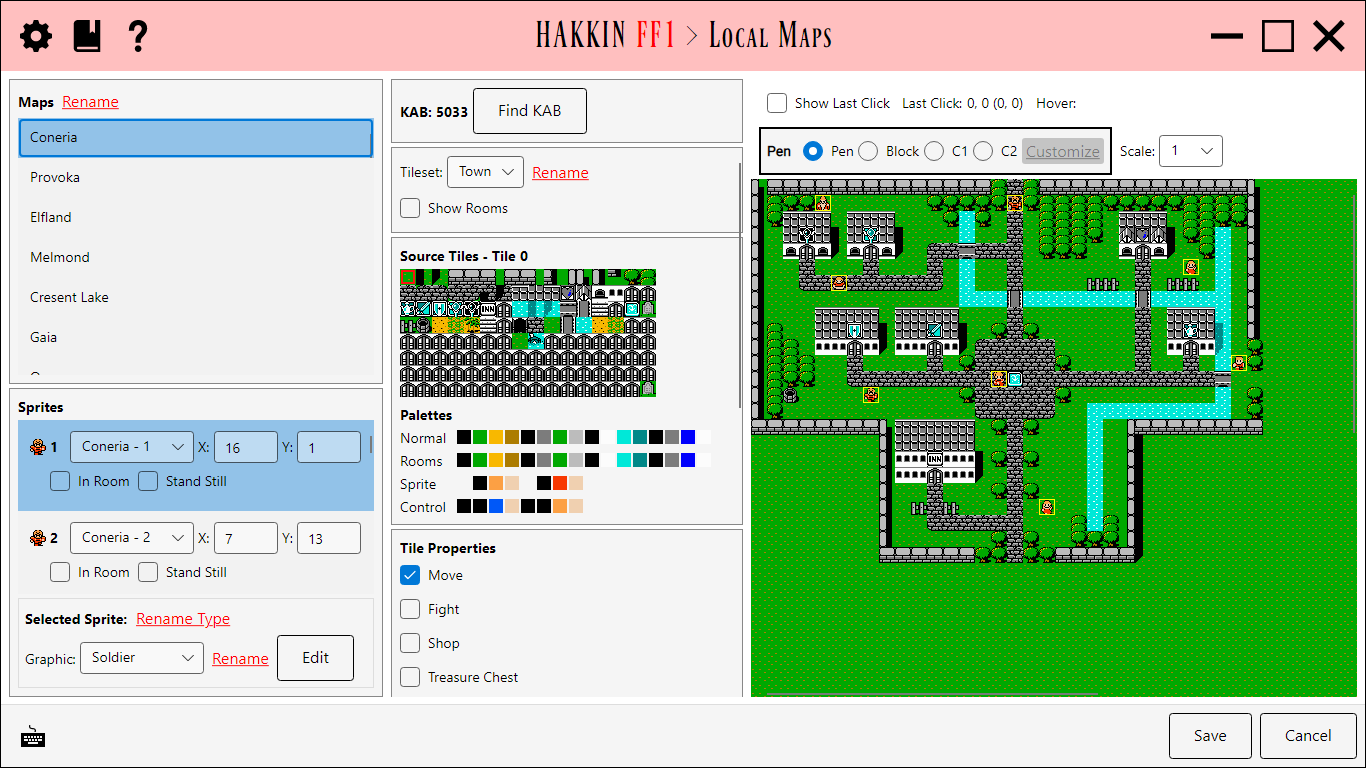
Edits the towns, castles, and dungeons: each map's layout, its tileset and palettes, the sprites that stand on it, and its random battles. Painting works just as it does in the World Map editor.
Maps and tilesets
- Maps lists every local map. Map names are project labels; Rename changes them.
- Tileset chooses which set of tiles the map is built from. Tileset names are labels too.
- Palettes has three blocks: the map's main background colors, the Control colors, and the Sprite colors. Click a color to change it in the NES Palette overlay.
Switching maps. Each map is compressed and stored when you switch away from it. If a map has become too complex to fit back into the ROM, the editor warns Not enough room to save this map and asks whether to Discard and Switch (losing your changes to it) or Stay on This Map so you can simplify it. Find KAB shows how much room is left.
Painting
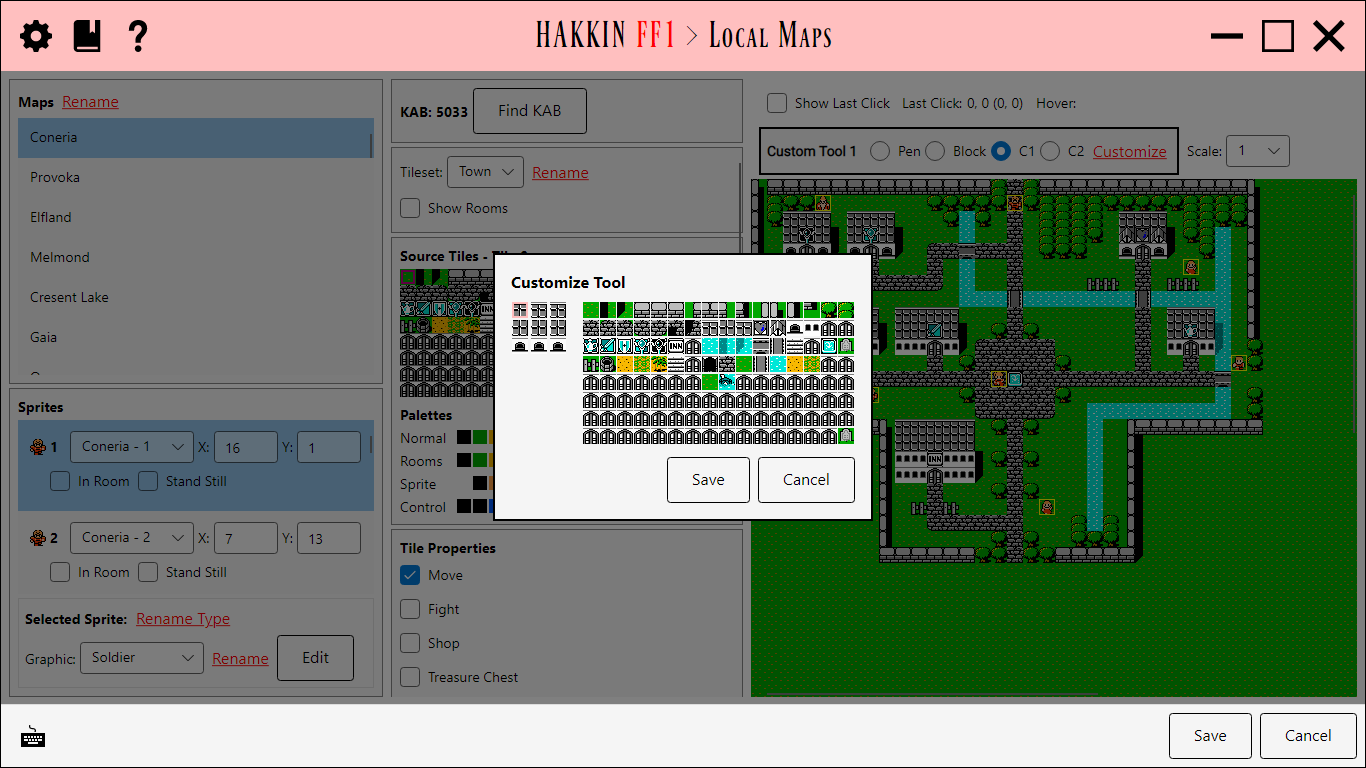
Select a tile from Source Tiles and paint with Pen, Block, or the Custom Tools (smart tools; Customize sets them up). Show Rooms shows the map as it looks from inside its rooms, and Show Last Click marks the last square clicked. Import Map and Export Map save and load the layout.
Tile Properties
The selected source tile's behavior in this tileset:
| Property | Detail |
|---|---|
| Move | Whether the tile can be walked on. |
| Fight | A tile that starts a fixed battle when stepped on, or rolls a random one. |
| Shop | A shop entrance. |
| Treasure Chest | A chest, and its contents (Item). The item list covers items, weapons, armor, gold, and magic. |
| Teleport / Warp | A tile that moves the party to another map or back out. |
| Special | Other tile actions, such as tiles that show Text. |
As in the World Map editor, the Source Tile Editor edits the tiles' graphics, with pattern tables, palette, and closeup. Double-click a tile to open it.
Sprites
The sprites placed on the map: townspeople, guards, and so on. Select one to see the Selected Sprite's details: which sprite it is, its X/Y position (or drag it on the map), and whether it should Stand Still and whether it's In Room. Edit Sprite Graphic edits the sprite's picture. What a sprite says is set in the Sprite Dialogue editor.
Battles for Map
The map's eight random battle slots, each with an optional second formation (F-2), and the Encounter Rate.
Teleports
View Teleports lists the map's teleports with the Map, X, and Y each leads to. Followup saves and jumps to where the selected teleport lands.