 Graphics
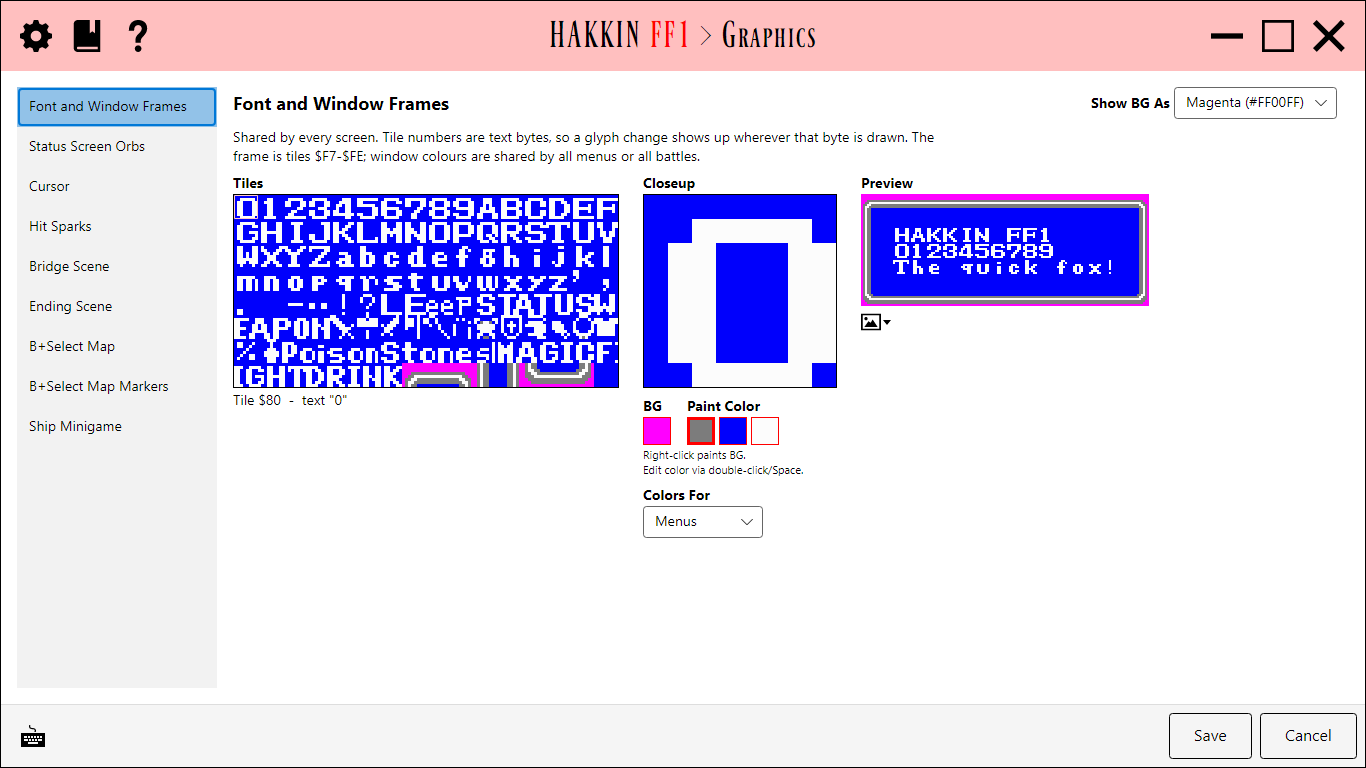
Edits the shared graphics that don't belong to any other editor. The list on the left holds the graphic regions, and the selected region's editor is on the right. Save writes back only the regions you changed.
Regions
| Region | Detail |
|---|---|
| Font and Window Frames | The text font and the borders of menus and dialogue windows. |
| Status Screen Orbs | The four orbs on the status screen, lit and unlit. |
| Cursor | The pointing-hand cursor. Its colors are shared with the battle sprites' palette group 4 in the Classes editor. |
| Hit Sparks | The sparks shown when an attack lands in battle. |
| Bridge Scene | The screen shown after the bridge is built, behind the prologue and the credits, and behind the ship minigame. |
| Ending Scene | The screen shown after Chaos is defeated, behind the epilogue. |
| B+Select Map | The world map screen shown by pressing B+Select: its graphics and the layout of the whole screen. |
| B+Select Map Markers | The markers drawn on that map. |
| Ship Minigame | The graphics for the hidden sliding-puzzle minigame. |
Editing a region
- Tiles shows the region's tiles. Select one to edit it in the Closeup.
- Paint Color picks the color to draw with. Left-click paints with it, and right-click paints the background color. Double-click a color, or press Space, to change it.
- Show BG As sets how background pixels are drawn in the editor, so they're easier to see. It's display only; the game and exported images keep the real color.
- Preview shows the region as the game draws it. For animated regions, Frames shows each animation frame.
- The
 button exports the region as an image, so you can edit it in your own paint program, and imports it back. Animation frames are exported and imported as one row.
B+Select Map
The B+Select map has a few extra tools, because it's a whole screen rather than a set of tiles:
- Screen shows the whole map screen. When you import an image, only this screen's own tiles are repainted. To bring in a new layout, import a
.nam(nametable) file. - Paint Palette Areas: click or drag on the screen to give each 16x16 area the selected palette.
- Move Tile to Square: click a square of the map to move the selected tile onto it. The square must be open sea.
- Move Tiles Off Land moves every tile sitting on land to the nearest free square of open sea.
The map's title and crests are drawn over some squares of the world. The World Map editor's Show B+Select Squares option highlights them, so you can avoid placing land there.
Additional details. The game has no separate tiles for the map. It shrinks the world map into the screen's tiles, so each tile is a picture of one square of the world, 16×16 world tiles in size. Once the map is drawn, the game copies the 88 title and crest tiles over the squares their placement tables name. That's why every title and crest tile needs a square of open sea: land in a covered square disappears from the map, and briefly shows inside the title or crest while the map draws. Square $00 is always covered too, since it fills the screen around the map.
The original world has 91 squares of open sea for those 89 covered ones, so a hack that adds land in the ocean has only two squares to spare. Move Tile to Square refuses land, square $00, and a square another tile already uses.